Word Count on Google Docs – Your Complete and Easy Guide
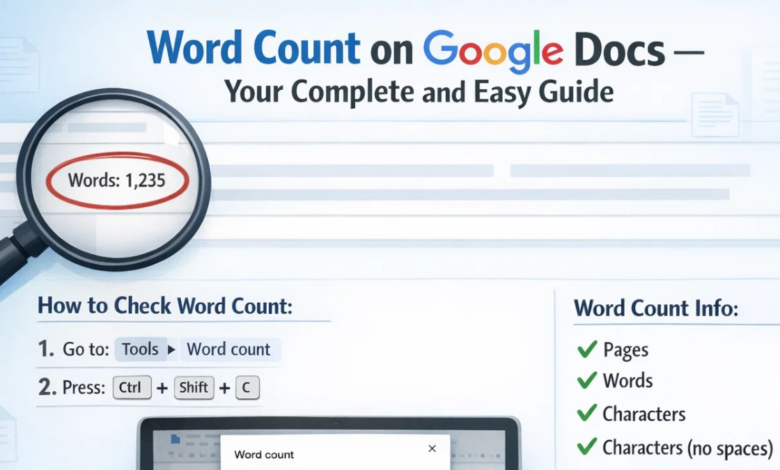
Word count on Google Docs is one of the most helpful tools for students, writers, teachers, bloggers, and professionals. Whether you are writing a school essay, a business report, a story, or a blog post, knowing your word count on Google Docs helps you stay on track. After all, most writing tasks come with limits sometimes you must write at least 500 words, and sometimes you must not go beyond 1,000 words.
In this detailed guide, you will learn everything about word count on Google Docs. We will explore what it is, why it matters, how to use it on different devices, helpful shortcuts, tips, common mistakes, and much more. By the end of this article, you will feel confident and ready to manage your writing like a pro.
Let’s dive in!
What Is Word Count on Google Docs?
Word count on Google Docs is a built-in feature that tells you:
- The total number of words in your document
- The number of pages
- The number of characters (with and without spaces)
It works automatically and updates whenever you add or delete text. This tool is part of Google Docs, which is a free online word processor created by Google.
In simple words, word count shows how long your document is. It acts like a small assistant that keeps track of your writing.
Why Word Count on Google Docs Is So Important
You might think, “Why does word count matter so much?” Well, here are some strong reasons.
It Helps You Follow Instructions
Many tasks have clear limits:
- School essays: 300–800 words
- Research papers: 1,500–3,000 words
- Blog posts: 1,000+ words
- Social media captions: short and sweet
Without checking word count on Google Docs, you might write too little or too much.
It Improves Time Management
Knowing your word count helps you:
- Plan your writing speed
- Divide work into parts
- Set daily goals
For example, if your goal is 2,000 words in four days, you can write 500 words each day. Easy peasy!
It Keeps Your Writing Balanced
Sometimes writers:
- Repeat ideas
- Add unnecessary details
- Drift away from the topic
Checking word count on Google Docs helps you stay focused and balanced.
How to Check Word Count on Google Docs (Desktop Version)
Using a computer? Great! Follow these simple steps:
- Open your document in Google Docs.
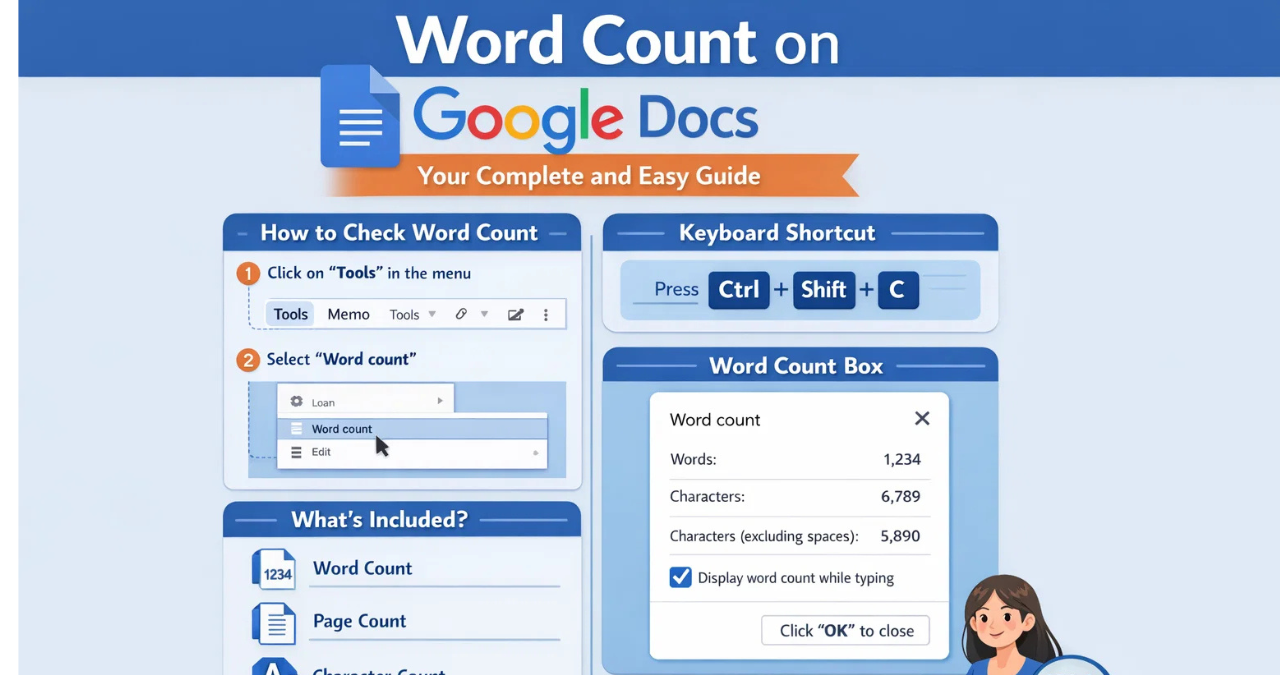
- Click on Tools in the top menu.
- Select Word count.
- A small window will appear showing:
- Words
- Pages
- Characters
- Characters without spaces
That’s it! Quick and simple.
Keyboard Shortcut for Faster Access
If you love shortcuts (and who doesn’t?), use:
- Ctrl + Shift + C (Windows)
- Command + Shift + C (Mac)
Boom! The word count window opens instantly.
How to Check Word Count on Google Docs (Mobile App)
Working from your phone? No problem.
Follow these steps in the Google Docs app:
- Open your document.
- Tap the three dots (⋮) in the top corner.
- Tap Word count.
- View your word, page, and character numbers.
The mobile version is simple and clean. It’s perfect when you’re writing on the go.
Real-Time Word Count on Google Docs
Did you know you can see your word count while typing?
Here’s how:
- Open your document.
- Go to Tools.
- Click Word count.
- Check the box that says “Display word count while typing.”
Now, your word count will appear at the bottom left of the screen. As you type, the number updates automatically.
This feature is perfect for:
- Timed writing tests
- Blogging
- Freelance writing
- Competitive exams
No need to keep opening the tool again and again.
Checking Word Count for Selected Text
Sometimes you don’t want the total word count. Instead, you may need the count for:
- One paragraph
- One section
- A single chapter
Here’s what you do:
- Highlight the text you want.
- Click Tools → Word count.
Google Docs will show:
- Word count for the selected text
- Total word count for the whole document
This is especially useful for students and editors.
Understanding Word Count Statistics
When you open word count on Google Docs, you see several numbers. Let’s break them down.
| Feature | What It Means | Why It Matters |
|---|---|---|
| Words | Total number of words | Important for essays and articles |
| Pages | Total number of pages | Useful for reports |
| Characters (with spaces) | Letters, numbers, and spaces | Often required for social media |
| Characters (without spaces) | Letters and numbers only | Needed for some forms and submissions |
Each number serves a different purpose. Knowing the difference makes you a smarter writer.
Common Situations Where Word Count on Google Docs Is Used
Let’s look at real-life examples.
Students
Students use word count for:
- Homework
- Essays
- Assignments
- Research papers
Teachers often give strict word limits. So, checking word count on Google Docs becomes necessary.
Bloggers and Content Writers
Online writers care about:
- SEO (Search Engine Optimization)
- Reader engagement
- Content quality
Longer articles often rank better on search engines. So writers monitor word count carefully.
Authors and Novelists
Writers of stories and novels track:
- Chapter length
- Total manuscript length
- Daily writing goals
For example, a novel may need 70,000–100,000 words.
Business Professionals
Office workers use word count for:
- Reports
- Proposals
- Business letters
Keeping documents concise shows professionalism.
Tips to Manage Word Count on Google Docs Like a Pro
Now let’s get practical. Here are some expert tips.
Set Writing Goals
Before starting:
- Decide your target word count
- Break it into smaller parts
This avoids last-minute panic.
Use Headings and Subheadings
Organizing your content helps you:
- Avoid repetition
- Stay focused
- Reach word goals naturally
Avoid Filler Words
Don’t add unnecessary phrases just to increase word count. Quality matters more than quantity.
Edit After Writing
First, write freely. Then:
- Remove repeated ideas
- Shorten long sentences
- Improve clarity
Your word count might decrease — and that’s okay!
Common Mistakes with Word Count on Google Docs
Even experienced writers sometimes make mistakes.
Ignoring Word Limits
Writing too much or too little can:
- Lower grades
- Cause rejection
- Reduce readability
Counting Words Manually
Some people try to count words themselves. That’s slow and risky. Use the built-in tool instead.
Forgetting to Check Selected Text
If only part of the document has a limit, remember to highlight it first.
Comparing Word Count on Google Docs with Other Tools
Google Docs is not the only word processor. Let’s compare it with others.
Microsoft Word
Microsoft Word also provides word count features. It shows word count at the bottom of the screen by default.
Apple Pages
Apple Pages allows users to check word count through the View menu.
Why Google Docs Stands Out
- Free to use
- Cloud-based (no installation needed)
- Real-time collaboration
- Automatic saving
Because it works online, you can access your document from anywhere.
Benefits of Using Word Count on Google Docs for SEO Writing
If you write for websites, word count is closely linked to SEO.
Search engines like Google often prefer:
- Detailed content
- In-depth explanations
- Longer, valuable articles
Writers use word count on Google Docs to:
- Meet content length goals
- Improve ranking chances
- Provide complete information
Still, remember — quality always beats quantity.
Advanced Uses of Word Count on Google Docs
Let’s go a little deeper.
Tracking Daily Progress
Writers can:
- Check starting word count
- Write for one hour
- Check ending word count
Subtract the two numbers to see daily progress.
Editing for Word Reduction
If you must reduce your word count:
- Remove repeated ideas
- Shorten long introductions
- Combine short sentences
This keeps your writing sharp and clean.
Meeting Strict Character Limits
Some platforms require character limits. Word count on Google Docs shows:
- Characters with spaces
- Characters without spaces
This feature is perfect for online forms.
How Teachers and Editors Use Word Count on Google Docs
Teachers often:
- Assign minimum word counts
- Review student progress
- Check assignment completion
Editors use it to:
- Ensure balance in articles
- Keep content consistent
- Match publishing guidelines
Because Google Docs supports real-time collaboration, teachers and editors can check word count while reviewing the document.
Frequently Asked Questions About Word Count on Google Docs
Does word count include titles?
Yes, it includes all visible text unless you highlight only a section.
Are footnotes included?
Yes, footnotes are counted in total word count.
Does it count text in headers and footers?
Yes, text in headers and footers is included in the total count.
Can word count update automatically?
Yes, when you enable “Display word count while typing,” it updates in real time.
Final Thoughts on Word Count on Google Docs
In today’s digital world, writing is everywhere — school, business, blogging, storytelling, and more. That’s why understanding word count on Google Docs is not just helpful; it’s essential.
This powerful yet simple tool helps you:
- Meet assignment requirements
- Improve time management
- Stay organized
- Write with confidence
- Maintain professional standards
Whether you’re a student finishing homework, a blogger writing for the web, or a professional preparing reports, word count on Google Docs keeps you on track.
At the end of the day, writing isn’t just about filling space. It’s about sharing ideas clearly and effectively. And with word count on Google Docs, you have a trusted companion to guide you every step of the way.
You may also read
Blog ThriftyEventsNet – Your Complete Guide to Smart, Stylish, and Budget-Friendly Event Planning